

The connection only reads data from Greenhouse. ClearOffer doesn’t add or change candidates, jobs, offers, or custom fields there. The only things it creates in your Greenhouse account are its own two webhooks.
Before you start
- A ClearOffer user with the Admin role
- A Greenhouse user with Site Admin permissions
- A Greenhouse plan that includes Harvest v3 partner integrations. See Greenhouse’s article, Connect to Harvest v3 partner integrations
Connect Greenhouse
1
Open Integrations
In ClearOffer, click
Company in the sidebar, then click Integrations.2
Start the connection
On the Greenhouse card, click 
Connect with Greenhouse. ClearOffer sends you to Greenhouse to approve the connection.3
Authorize ClearOffer
Enter your Greenhouse email address and click 
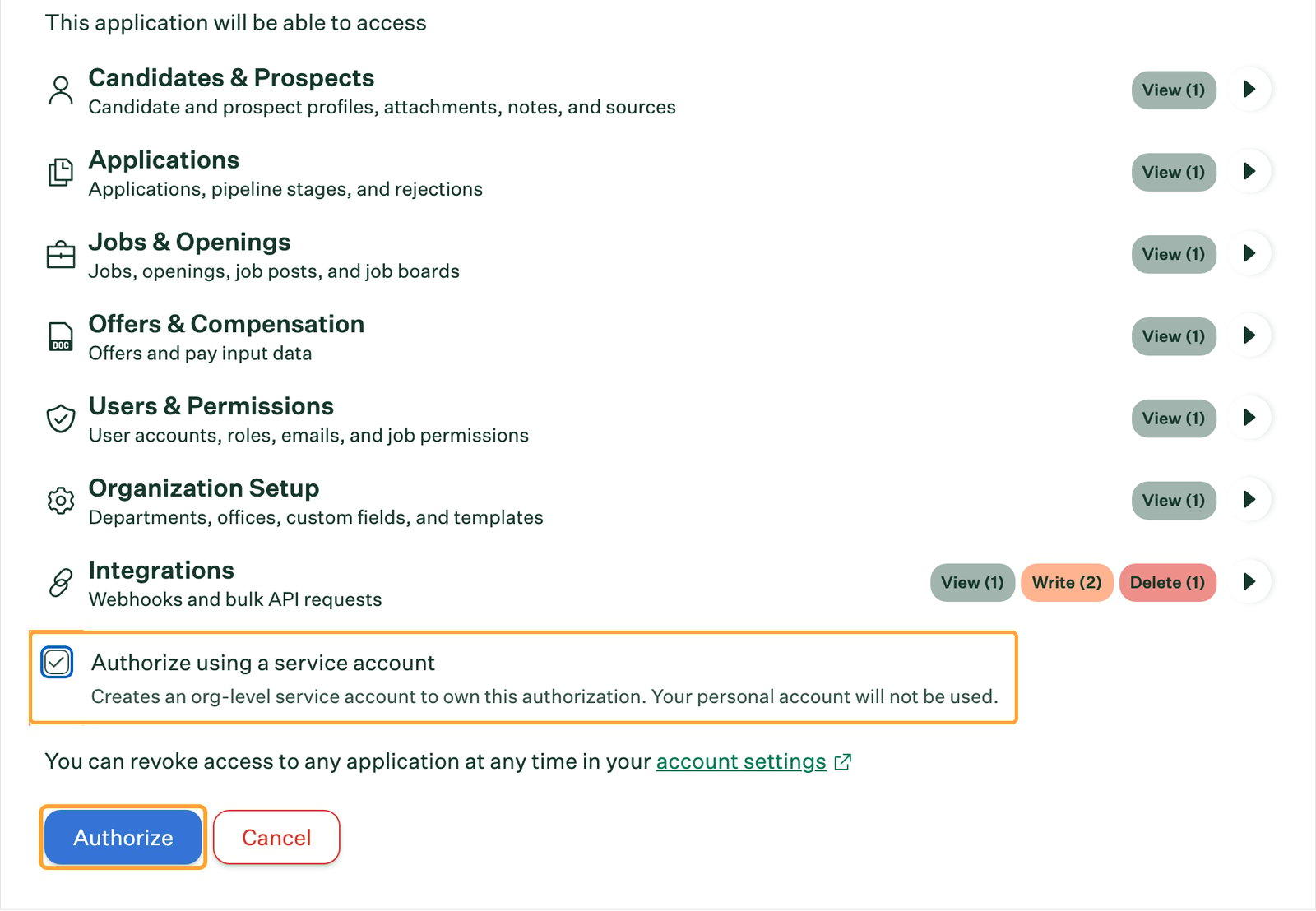
Log in to Greenhouse. Review the permissions, select Authorize using a service account, then click Authorize. Finish in the same browser where you’re signed in to ClearOffer.4
Check the connection
Greenhouse sends you back to ClearOffer. The Greenhouse card now shows a 
Connected badge.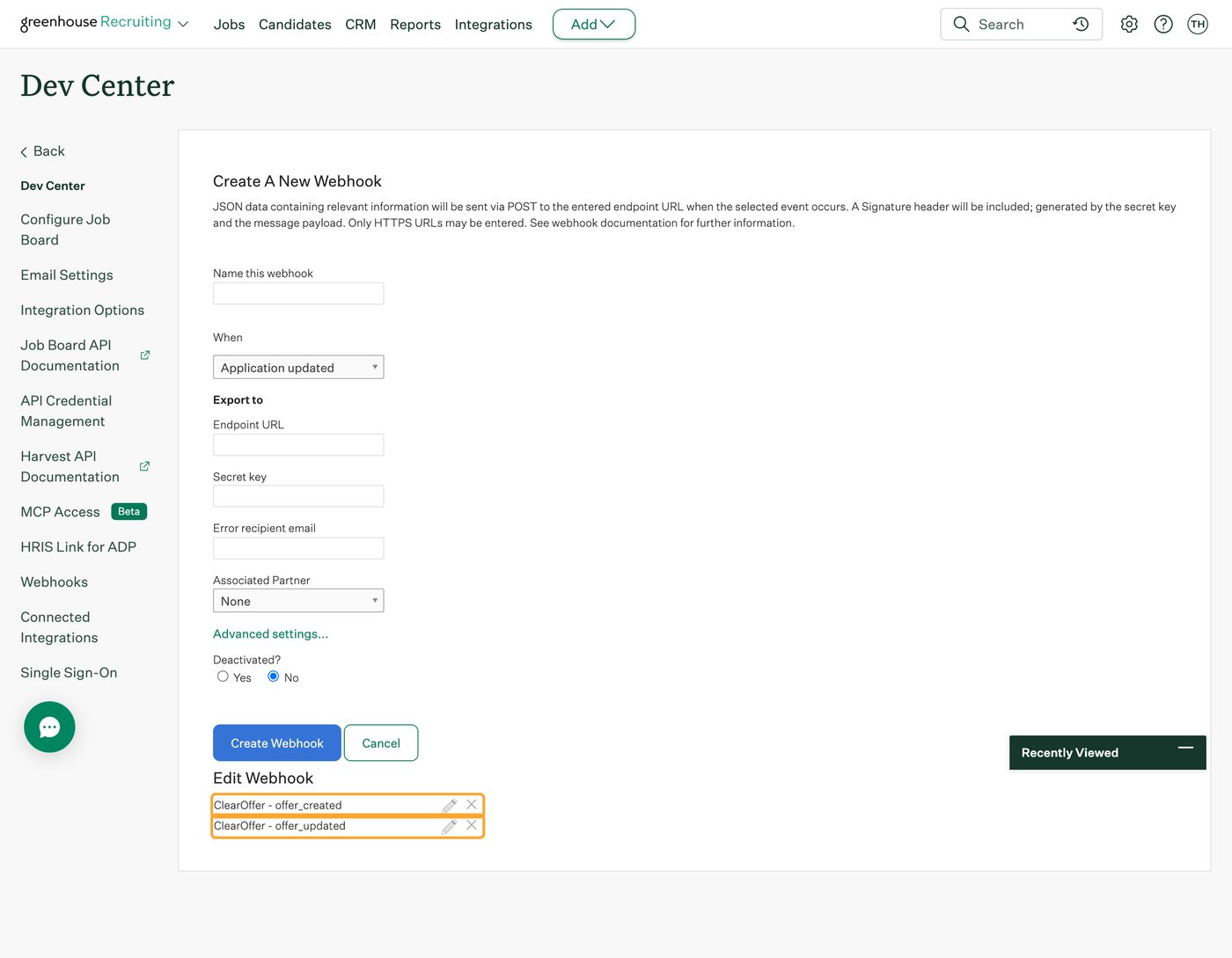
What happens when an offer syncs
1
An offer is created in Greenhouse
ClearOffer creates an offer with the 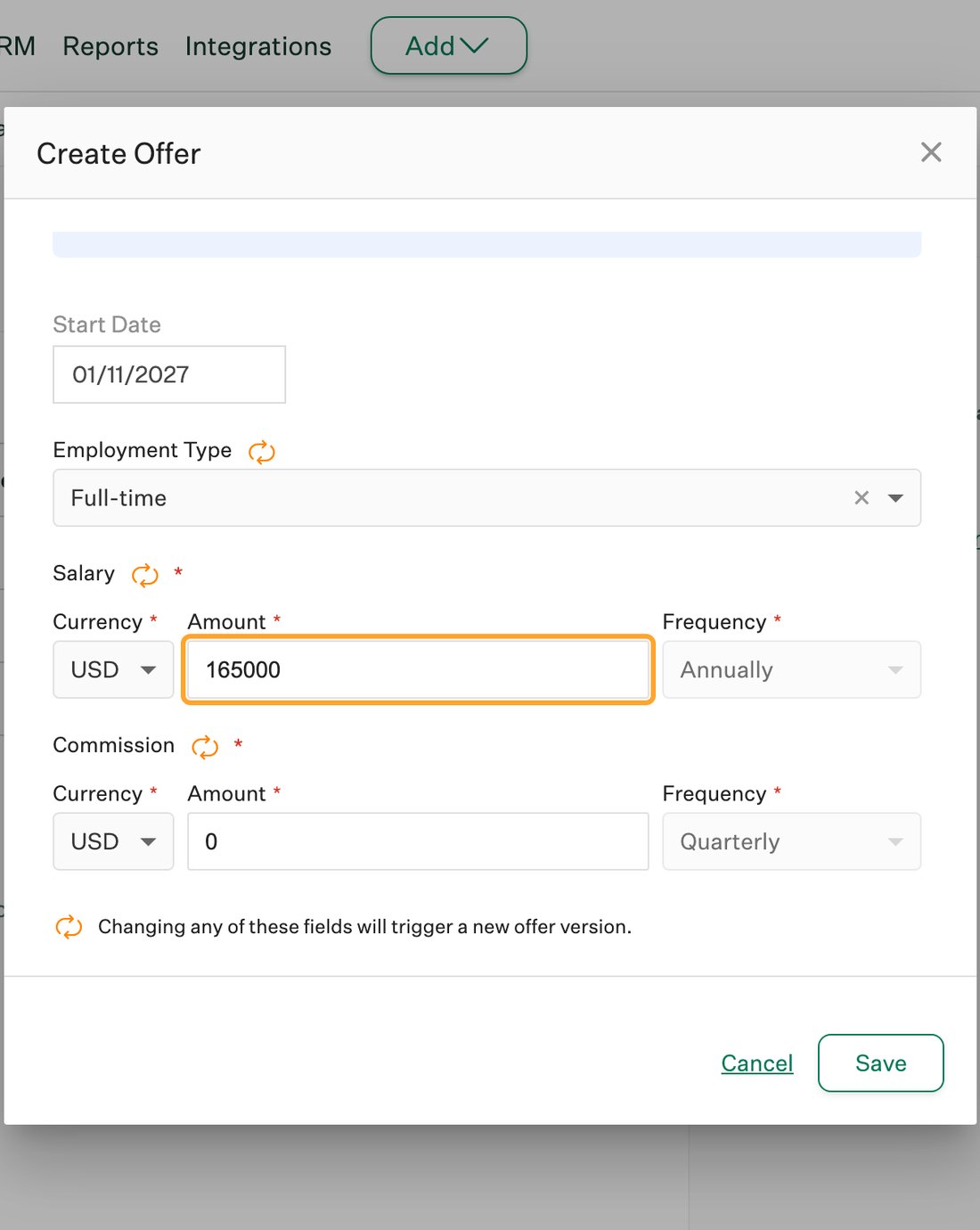
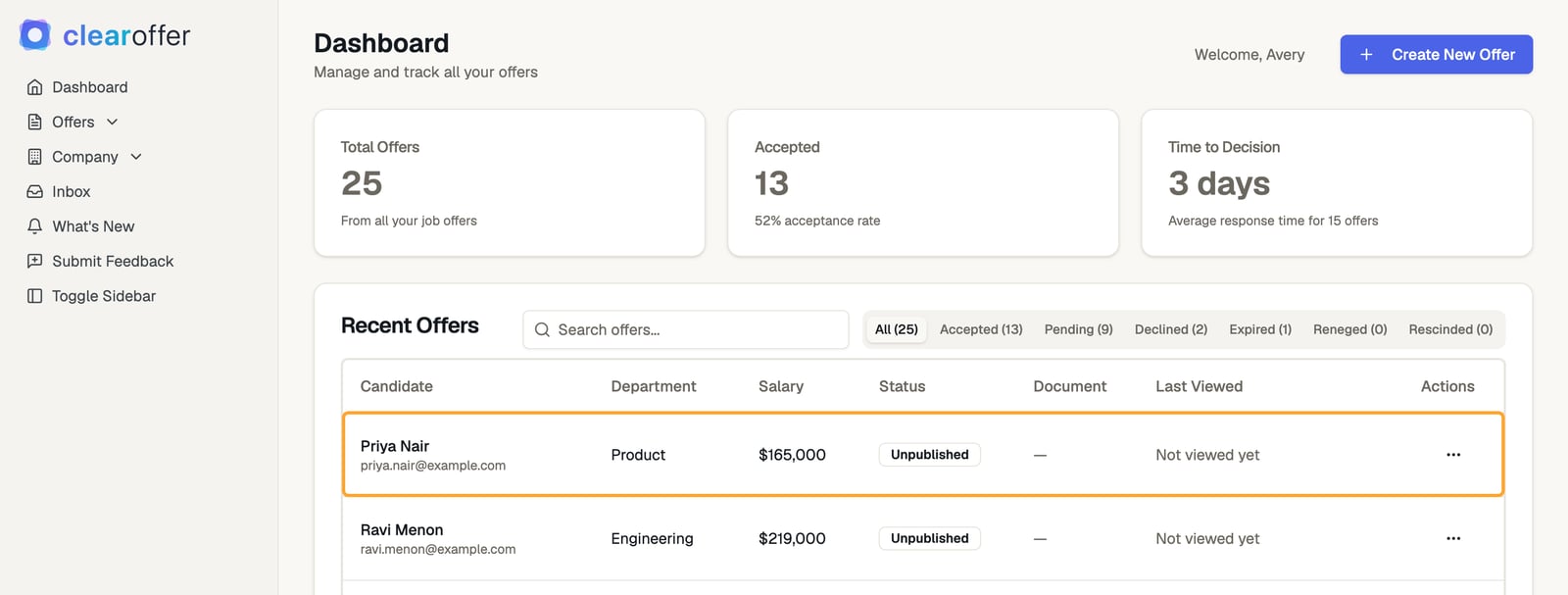
Unpublished status. The candidate can’t see it yet.2
Review and complete it
On the Dashboard, click the 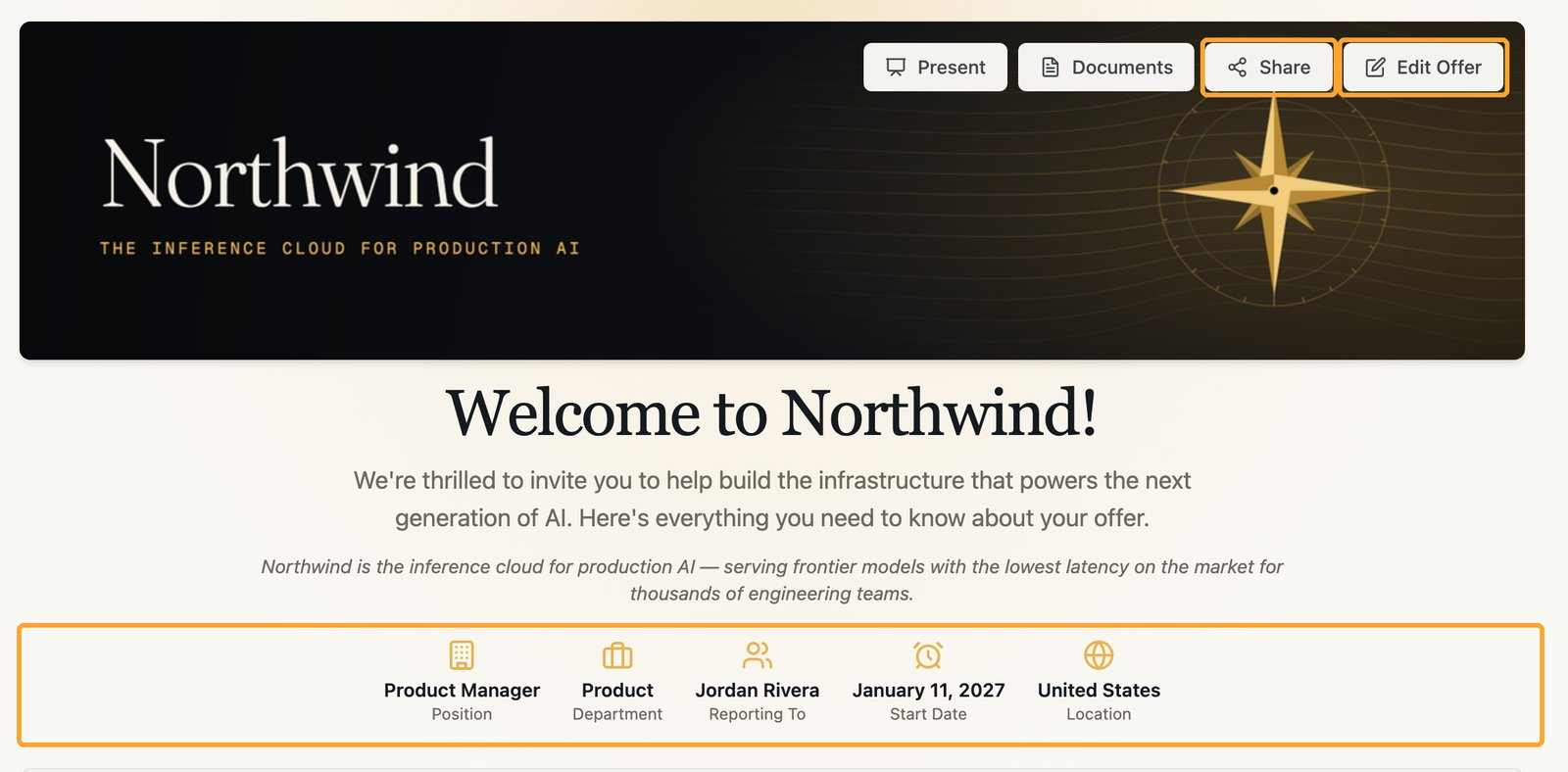
... menu on the offer and then View Details. Click Edit Offer to check the details. Add anything Greenhouse doesn’t provide, such as benefits, bonuses, and documents.3
Share it with the candidate
On the offer page, click 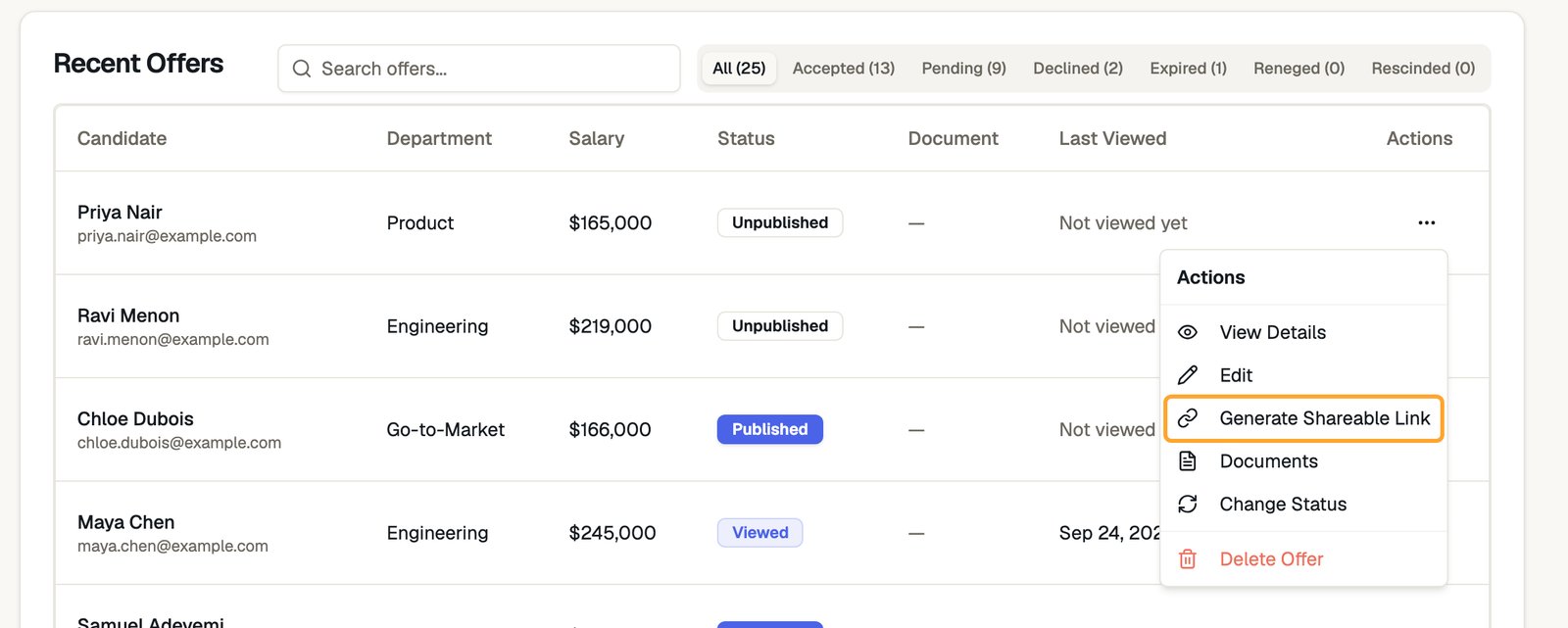
Share. From the Dashboard, you can also click the ... menu and then Generate Shareable Link. Creating the link publishes the offer. Copy the link and send it to your candidate.When an offer changes in Greenhouse
Some changes in Greenhouse create a new version of the offer. Greenhouse marks those fields, including salary, with a cycle icon on the offer form.
If a change affects a document you’ve sent, the recruiter gets an email. Review the offer and share it again, and the candidate can then sign and accept the updated document. If they’ve already signed, restore the signed terms or send a new offer.
A few things to keep in mind:
- Greenhouse is the source of truth for synced fields. Each update brings in the latest role, department, location, salary, currency, start date, and candidate name, along with any field you’ve mapped. Make lasting changes to these fields in Greenhouse.
- Everything else stays as you set it. Bonuses, benefits, commission, and documents carry over through updates. So do fields you haven’t mapped, such as the expiration date and pay frequency.
- Blank fields keep saved values. A field that’s empty in Greenhouse never replaces a value already on the offer.
- Each job has its own offer. New versions continue the same offer and link while it’s open. A candidate with offers on two jobs gets a separate offer for each.
- If a candidate’s email changes. The offer and its link keep working under the original email, including after their records are merged in Greenhouse.
What gets synced
Salary comes from an offer custom field with a Currency value, either marked as base compensation in Greenhouse or with “salary” in its field key. Amounts paid on another schedule are converted to an annual salary. If your salary field is a plain number, map it to
Base Salary Override.Map custom fields
Map your Greenhouse offer custom fields to fill in more of each offer, such as team, reporting manager, or equity.1
Open custom fields
On the connected Greenhouse card, click 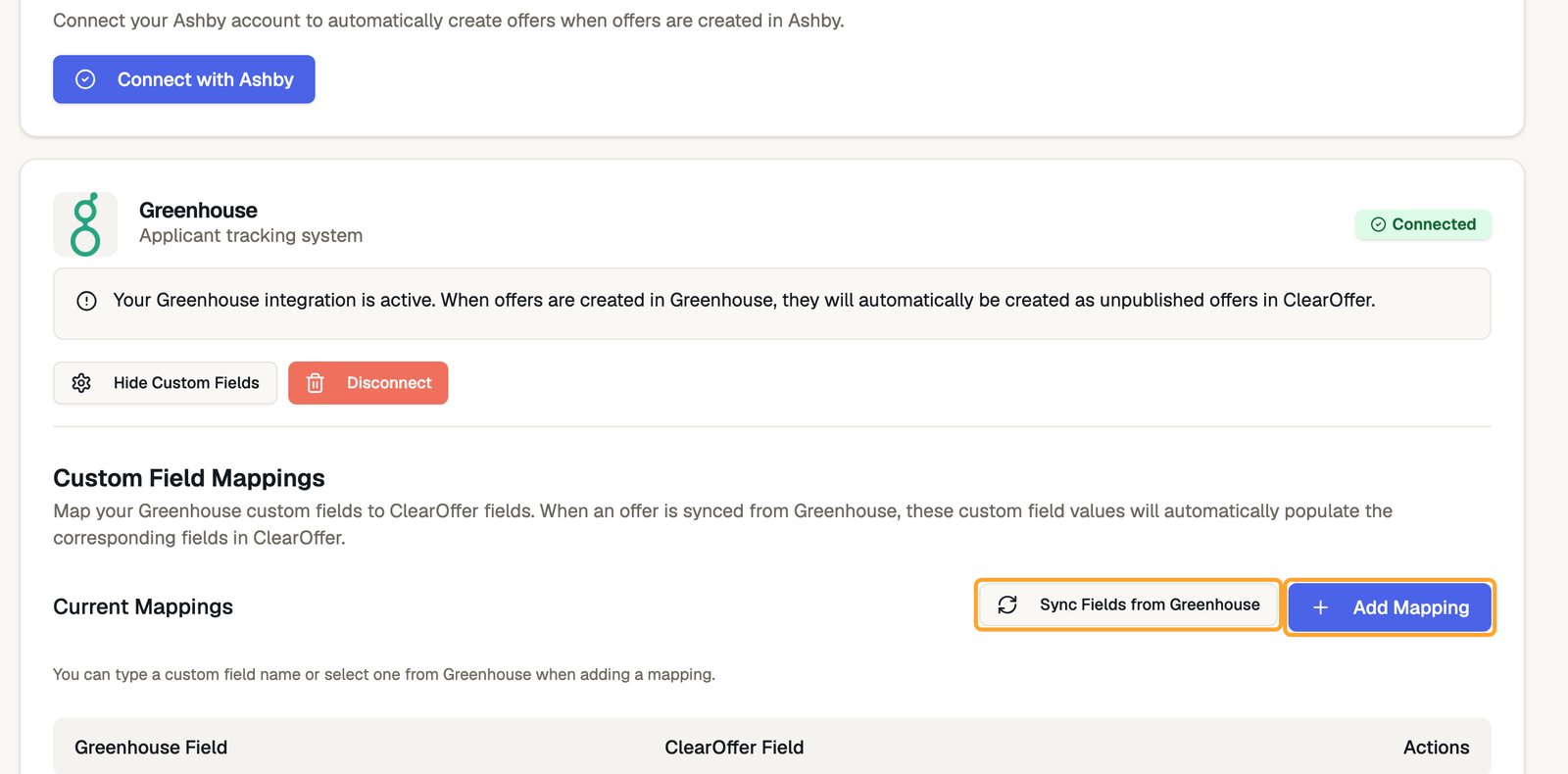
Show Custom Fields. ClearOffer loads your active fields from Greenhouse. To reload them later, click Sync Fields from Greenhouse.2
Add a mapping
Click 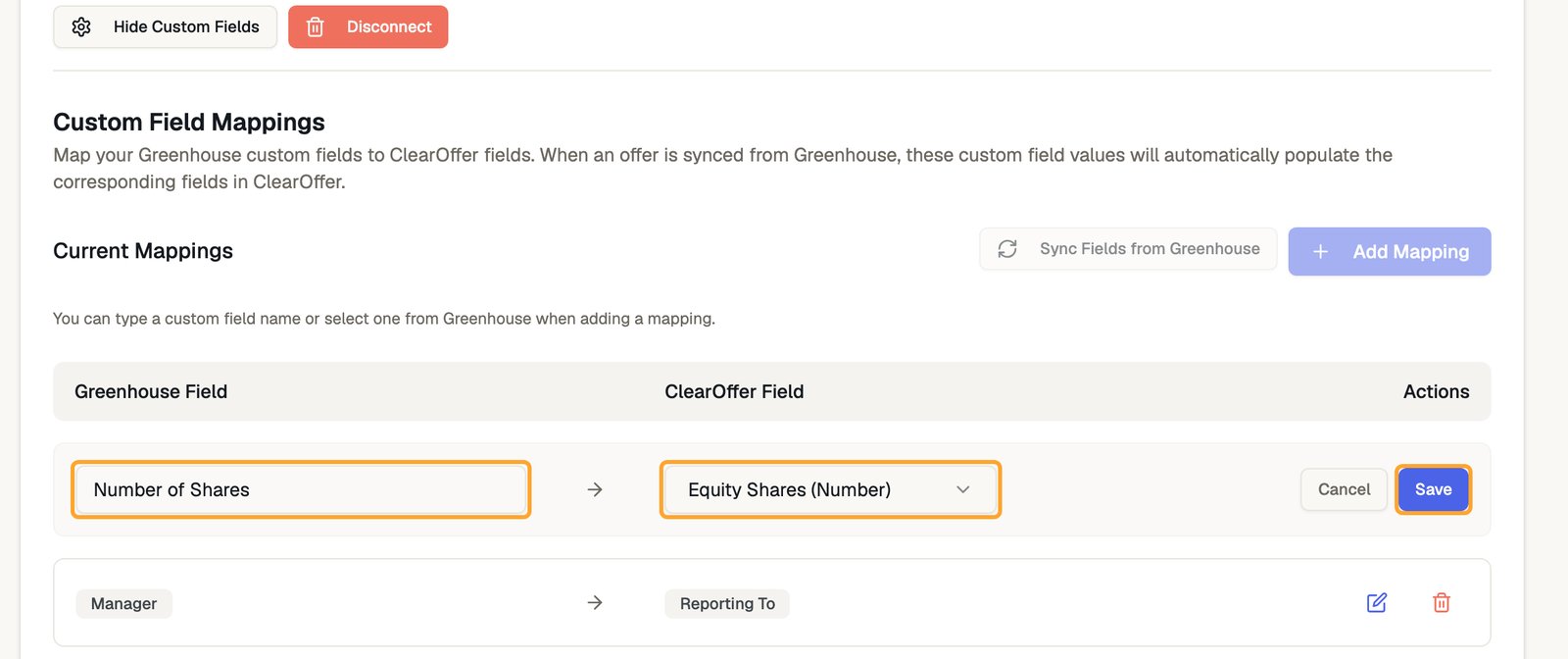
Add Mapping. Choose or type the name of a Greenhouse offer custom field, choose a ClearOffer field, then click Save.3
Test it
Mappings apply the next time Greenhouse sends an offer. Create or update a test offer in Greenhouse and check the result in ClearOffer.
Fields you can map
Keep the connection healthy
ClearOffer keeps its Greenhouse connection current for you and watches each sync. If an offer can’t sync, Greenhouse retries it automatically and existing offers stay as they were. If something needs you, the Greenhouse card shows aNeeds Attention badge, which clears after the next successful sync. If Greenhouse’s retries run out, or Greenhouse stops accepting the connection, your company’s Admins also get an email. To fix a connection, click Reconnect Greenhouse on the card and authorize again. ClearOffer replaces its webhooks and syncing picks up with the next offer change.
Disconnect Greenhouse
1
Disconnect in ClearOffer
Go to
Company > Integrations, click Disconnect on the Greenhouse card, then confirm. ClearOffer removes its webhooks from Greenhouse.2
Check the confirmation
If the confirmation says a webhook couldn’t be removed, go to Configure > Dev Center > Webhooks > Webhooks in Greenhouse and delete it.
3
Revoke access in Greenhouse (optional)
To also remove the authorization from Greenhouse, go to Configure > Dev Center > Connected Integrations, then disconnect ClearOffer.
Troubleshooting
Offers aren't appearing
Offers aren't appearing
- Check the Greenhouse card for a
Needs Attentionbadge - Make sure the candidate has an offer in Greenhouse. ClearOffer syncs when an offer is created or updated
- In Greenhouse, go to Configure > Dev Center > Webhooks > Webhooks and confirm both ClearOffer webhooks are listed
- In the same section, open Webhook Log to see whether Greenhouse delivered the offer to ClearOffer
- If a webhook is missing, disconnect in ClearOffer and connect again
A custom field isn't in the list
A custom field isn't in the list
- Click
Sync Fields from Greenhouseto refresh the list - Confirm it’s an active offer custom field in Greenhouse
- Type the field name yourself. The name doesn’t have to come from the list
A mapping didn't apply
A mapping didn't apply
- Confirm the field is an offer custom field, and that its name matches Greenhouse
- Confirm you’re using one of the fields you can map
- Update the offer in Greenhouse after saving the mapping, so the mapping applies to it
Do I need a Harvest API key?
Do I need a Harvest API key?
No. ClearOffer connects through Greenhouse’s OAuth authorization. You don’t need to create or share an API key.